
The Telegram bot
Trader Pending began as a Telegram bot, and Telegram remains a full trading interface, not just a notification channel. From the chat you can open positions, paste signals, mark zones, manage running positions, set alerts, and adjust preferences. Everything runs through your own exchange API key, so your funds stay in your exchange account.
Telegram and the web app are two faces of one account. You sign in to Trader Pending in the web app, then link Telegram once; after that both share the same data. Telegram is not a login method, it is a surface for acting quickly. See Connect Telegram for how to link it.
Two things are set up once in the web app, not in the chat:
- API key. Entered in the web app and never typed into the chat. See Connect an API key.
- Linking Telegram. Done from Settings in the web app. See Connect Telegram.
Once your account is linked and web setup is complete, type /start and the bot opens the Dashboard right away. You never re-enter your API key in the chat.
Navigation: buttons or commands
Section titled “Navigation: buttons or commands”There are two ways to navigate, and both open the same panels:
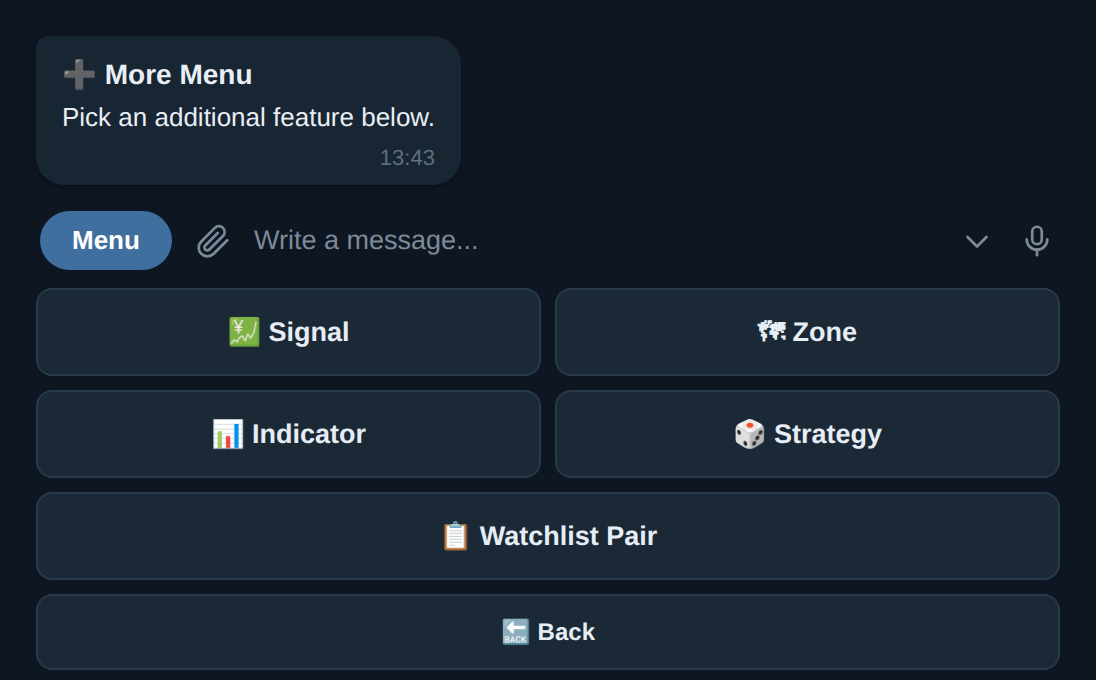
- Menu buttons. A row of buttons below the chat box. The main menu holds Trade, Positions, Chart, Alert, Settings, and More. Inside More are Signal, Zone, Indicator, Strategy, and Watchlist Pair.
- Commands. Type them directly, for example /start for the dashboard, then /trade, /signal, /zona, /alert, /settings, and /help.
Trading from the chat
Section titled “Trading from the chat”All three entry methods size the position automatically from the risk you set (risk percentage times balance divided by the stop distance), honour the one pair one position rule, and are routed to the exchange through your API key.
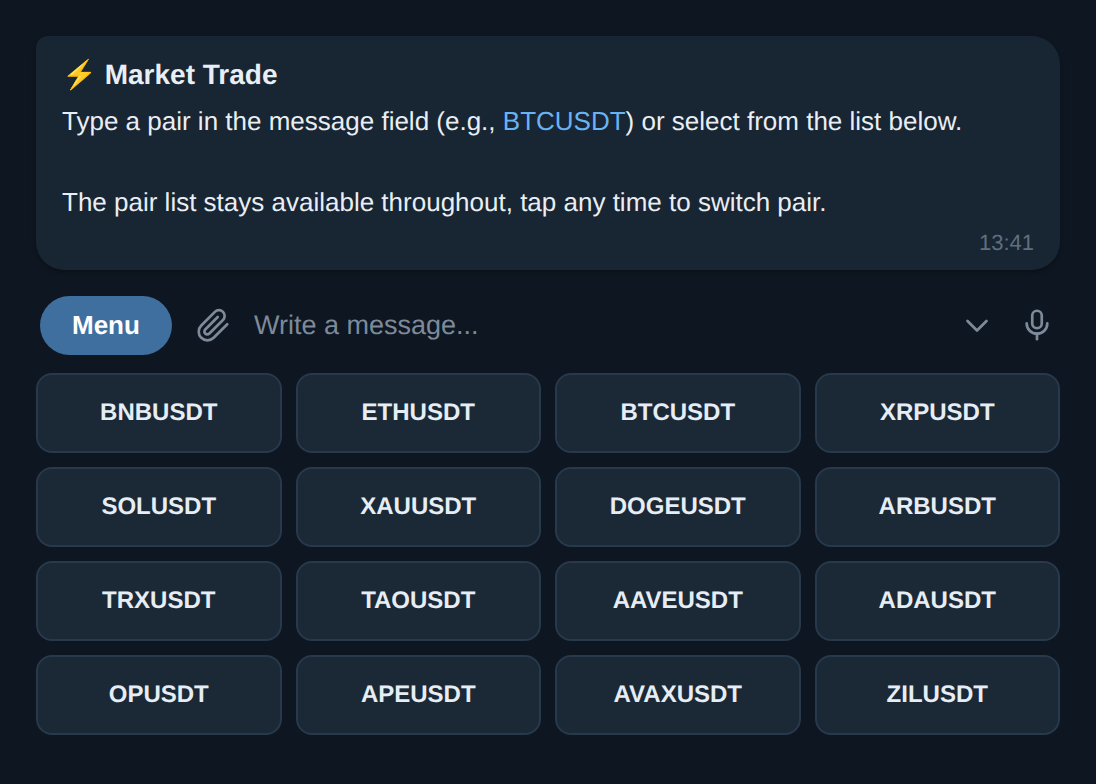
Market orders with /trade
Section titled “Market orders with /trade”Pick a pair, then the direction Long or Short, set the stop-loss (Auto from price structure and ATR, or Manual), and enter up to three targets. The bot shows a preview with entry price, size, risk in USDT, risk percentage, and risk-reward ratio. Press Execute and the position opens at market. If the risk-reward ratio is below 1, the bot warns you but still allows execution. For the panel details and how to read the consequences, see Manual order.
Signals with /signal
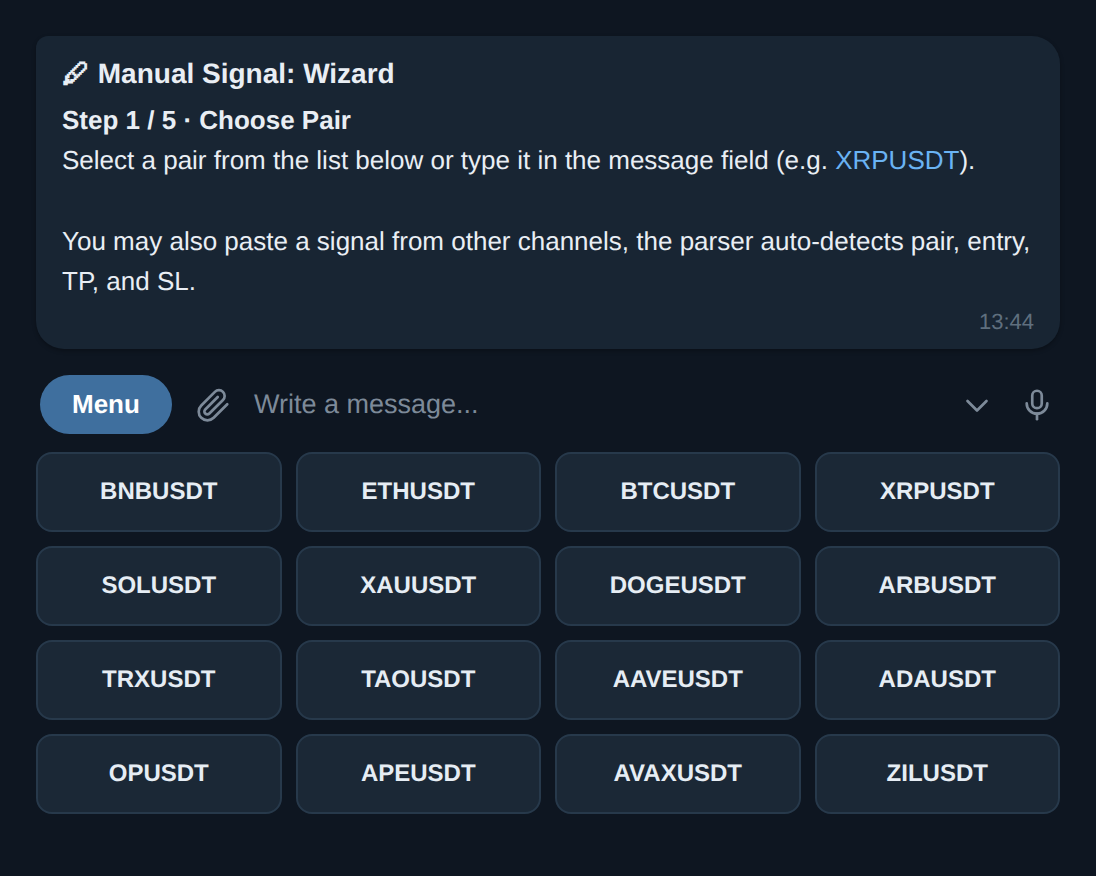
Section titled “Signals with /signal”For entering with your own Entry, stop-loss, and targets. Run the wizard, or paste a signal from a channel and the bot reads the symbol, direction, entry, stop, and targets automatically, recognising both Indonesian and English formats. You choose Market for immediate execution, or Pending to wait for price to touch the entry. On market execution, orders with slippage above 2 percent are rejected; for a price-range entry there are options for how to enter. Full guide: Trading from a signal.
Zones with /zona
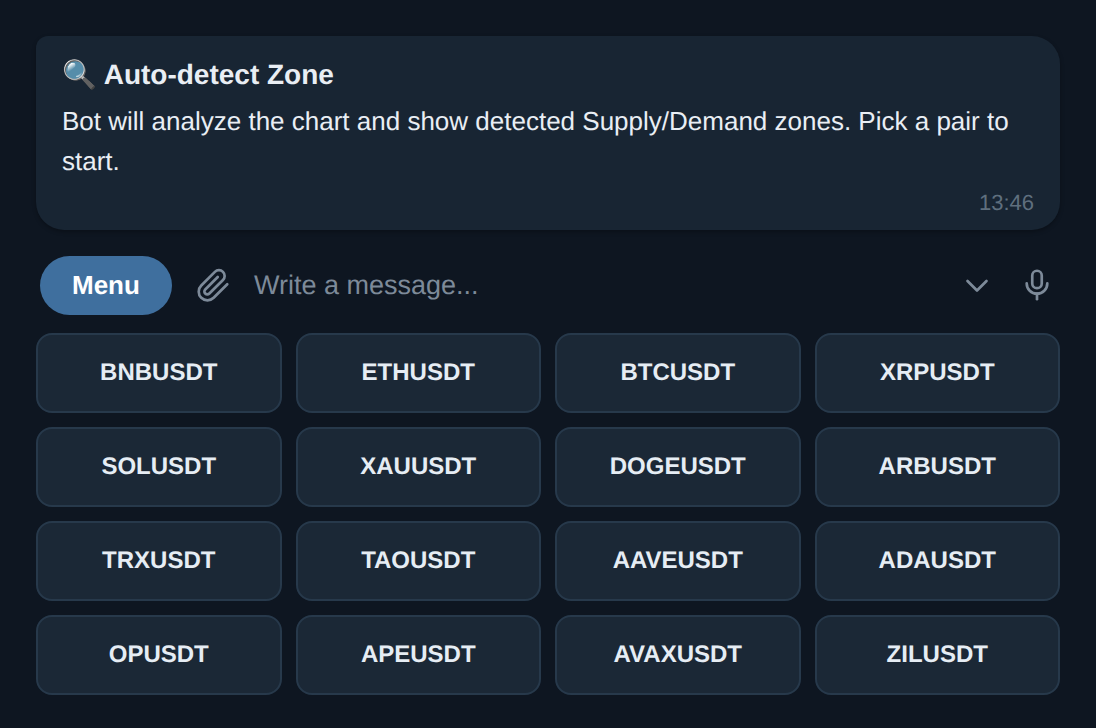
Section titled “Zones with /zona”The bot detects supply and demand zones on your chosen pair, shows them as a layer on the chart, then lists them with direction and confidence. You pick the zone you want, set the wick filter and timeframe, and save it. Once saved, the bot watches that zone and opens an order only when price enters the zone, a rejection candle appears (if the wick filter is on), the risk-reward ratio is sufficient, and there is no existing position on that pair. This is not silent auto-trading: you choose and save the zone, the bot simply carries out that decision. Details: Supply/Demand zone.
Manage positions and balance
Section titled “Manage positions and balance”Open the list of open positions with the Positions button. Each row shows entry price, current price, running PnL, stop-loss, and the first target. Tap a position to see its detail along with a chart. From the detail, you manage the position without closing and reopening:
- Move the stop to break-even.
- Close partially: 25, 50, or 75 percent.
- Close in full.
- Change the stop-loss or targets.
The Balance button shows a wallet summary: Equity, Wallet, available balance, used margin, and unrealized PnL, plus a summary of today’s PnL. The data is per-user. If you have not set an API key, equity shows 0, which is neither an error nor someone else’s balance.
Pause and resume
Section titled “Pause and resume”When you need to step back for a while without closing anything, type /pause. While the pause is active:
- No new positions from zones, limits, or manual orders. Saved zones do not open orders, waiting limits are not executed, and /trade and /signal are declined with a message that the bot is paused. Limits already resting on the exchange are pulled for the time being.
- Open positions are left alone. Stop-losses and targets keep being monitored and executed as usual. You can still manage positions from the Positions button.
- Grid and DCA bots keep running under their own controls. The pause does not stop them; each bot has its own stop button on its page.
Type /resume to continue. Zones and limits go back to work, and the limits that were pulled are placed again automatically. While the pause is active, the web app shows a Pause active notice at the top of every page with a Resume button, so you do not need to go back to Telegram to continue.
Settings
Section titled “Settings”Everything sits under the Settings button, available according to your plan:
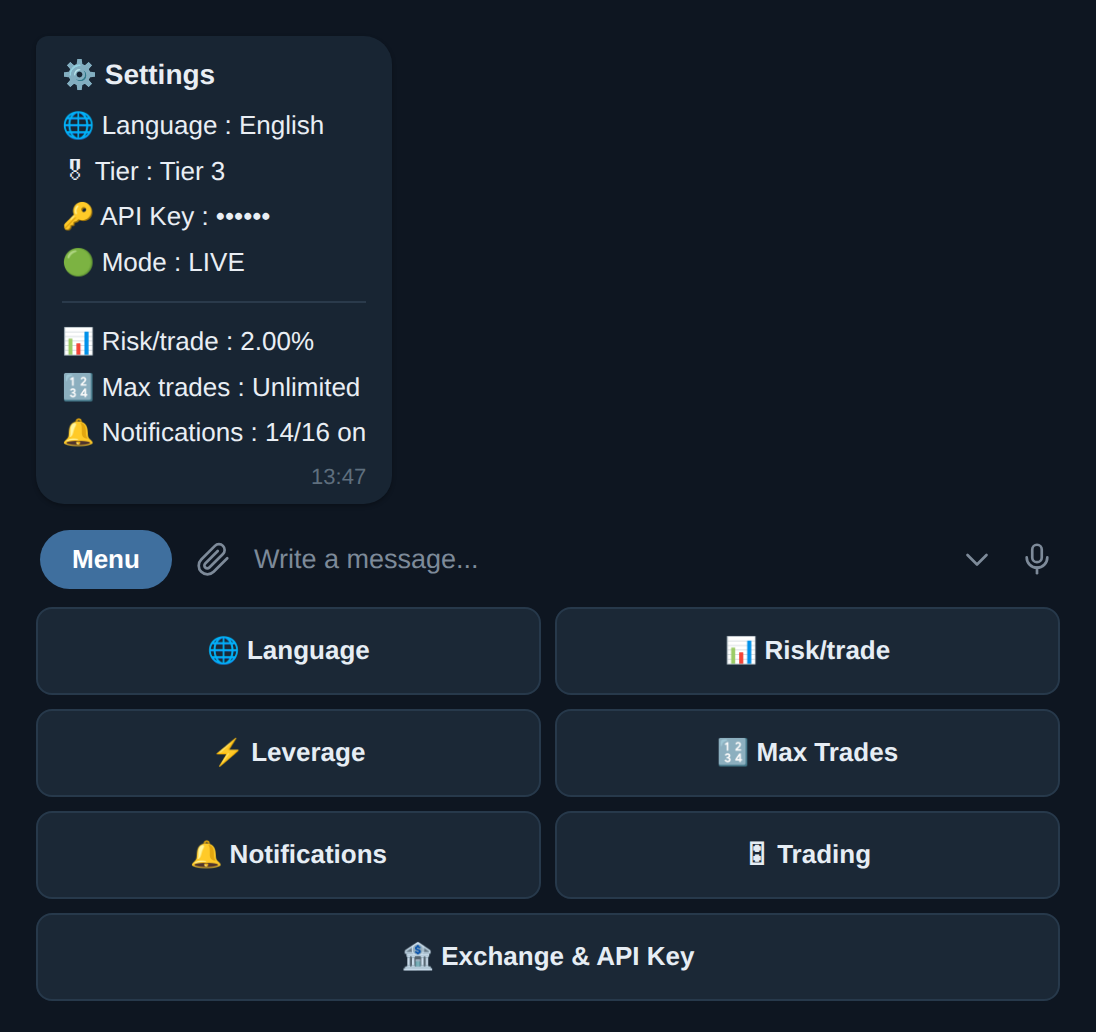
- Language. Indonesian or English.
- Risk per trade. Presets of 1, 2, 3, or 5 percent, or a custom value in the range 0.25 to 10 percent. Above 3 percent the bot warns you.
- Leverage. Presets up to 125x or a custom value in the range 1 to 125x, with a default of 20x. Above 20x the bot warns you.
- Trades per day. 3, 5, 10, unlimited, or a custom value up to 50.
- Watchlist pairs. Add, remove, or reset. Symbols are normalised automatically, for example bnb becomes BNBUSDT. Capacity follows your plan.
- Strategy. Enable detectors and choose a supply and demand zone preset: Conservative, Balanced, Aggressive, or Permissive.
- Notifications. Turn each type of notification on or off, along with auto-detect and the news pause.
- Exchange and API key. Switch between exchanges you have already connected. Adding a new API key is done in the web app.
Notifications and alerts
Section titled “Notifications and alerts”While a position runs, the bot sends automatic notifications: entry, target touched, stop moved to break-even, through to a full stop or full target, and a daily summary at the end of the day. Each type is adjustable in Settings.
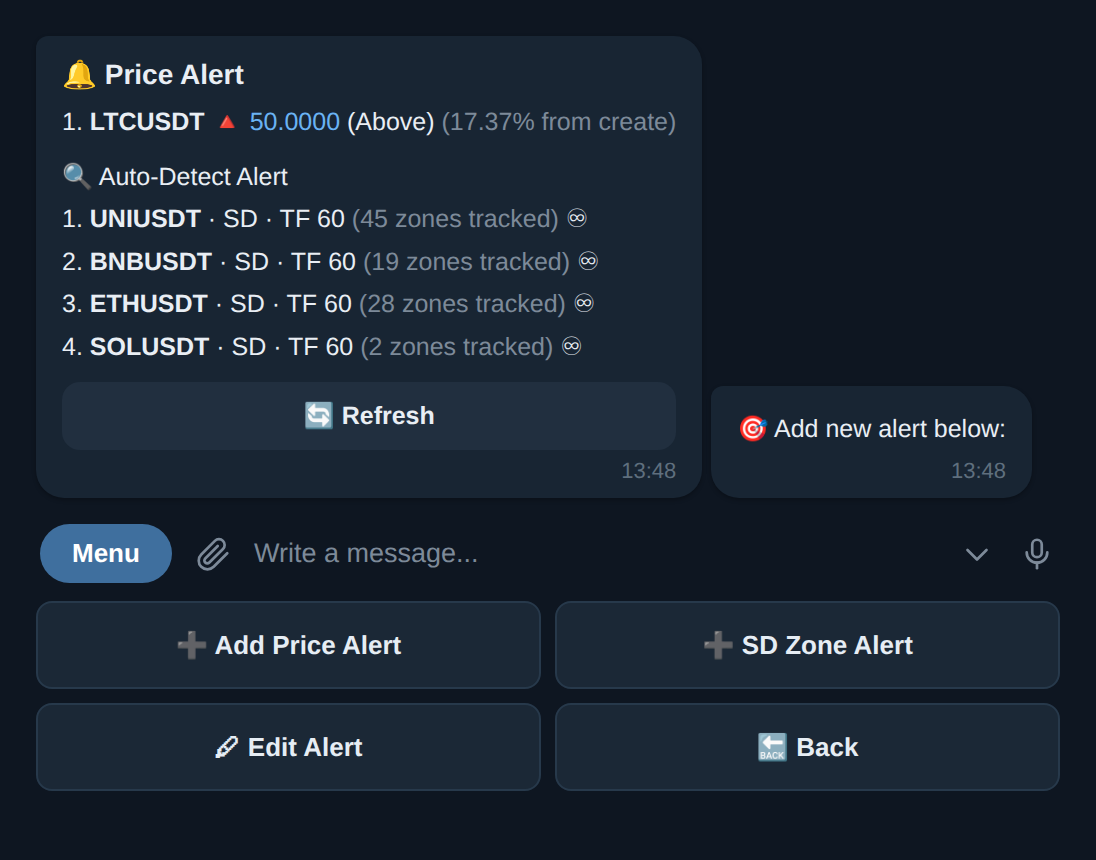
You can also set your own alerts:
- Price alert. Choose a pair and a target price, set cross above or below, then the bot notifies you when it is touched, then deactivates the alert (it fires once).
- Zone alert. Subscribe to zone detection on a pair and timeframe of your choice, and the bot notifies you with a chart image when a new zone forms. Available from the Hybrid plan.
- News pause. On by default. Ahead of high-impact economic releases, the bot warns you and pauses price and zone alerts temporarily, so you are not triggered by a momentary spike.
If the platform runs a public channel, that channel broadcasts curated zones along with a chart image. It is read-only, and you decide whether to act on it.
Capabilities unlock gradually with your plan, from Free through Hybrid to Pro. Manual trading via /trade, /signal, and /zona is available on every plan. Capacity such as the number of positions, watchlist size, and alerts, together with advanced features such as zone alerts, trading customisation, and signals for pairs outside your watchlist, grows on higher plans. The limits that apply right now are always shown on the plan page inside the app. See Pricing.
Security
Section titled “Security”- Non-custodial. The bot connects through your API key with read and trade permission only, and has no ability to withdraw funds. It is best to issue a key without withdrawal permission.
- API key in the web app. The key is entered on the web, never typed into the chat, and stored encrypted.
- One pair, one position. Positions do not collide on the same pair.
- No duplicate orders. Connection retries do not produce a double order.
- Stops when data is uncertain. If instrument data is unclear, the bot stops rather than mis-sizing.
- Per-exchange routing. Each position remembers its origin exchange, so closing is always routed to the right place.
For the full detail, see Control & security.
Crypto futures trading carries high risk, including the possible loss of part or all of your capital. Trader Pending does not promise profit and does not hold your funds. All risk limits are optional and entirely up to you.